ROI Center setup

Getting Started Guide

Getting started guide

Install, onboard, set up, and start using The Service Pilot ROI Center.

Install ROI Center, connect ad and CRM data, validate attribution, and use the dashboard to see which campaigns create booked work with no spreadsheet hunting.

Customer outcome

A customer can review spend, leads, booked jobs, revenue, ROAS, connection health, and recommended cleanup actions.

Agency owners, marketers, and service-business operators

Setup flow

5 steps
Guided

Follow the steps in order

Each section tells the customer exactly what to click, what to verify, and when to move to the next step.

Handoff rule

Clear finish
Required

Use the completion check

Do not mark setup complete until the done-when line for every required step is true.

Expected setup

30-45 min
Estimate

Most customers finish initial setup in one session

Connection approvals, missing credentials, or account permissions are the most common delays.

Step-by-step setup

Follow these in order from top to bottom. Do not skip ahead unless the done-when check for the current step is true.

12 minCustomer or agency admin

Open the ROI Center dashboard

Confirm the installed app opens the correct reporting workspace.

Step-by-step actions
  • In GHL, switch into the exact customer location you want to report on.
  • Open Marketplace Apps or the left-side app menu, then click The Service Pilot ROI Center.
  • Wait for the dashboard to load before clicking anything else.
  • Check the business name or location label and make sure it matches the customer you are setting up.
  • Look at the top metric cards and note which data sources already show numbers and which ones still need setup.
  • If the wrong customer opens, stop and switch GHL locations before connecting any accounts.

Done when

The dashboard loads for the correct location and shows current connection or snapshot status.
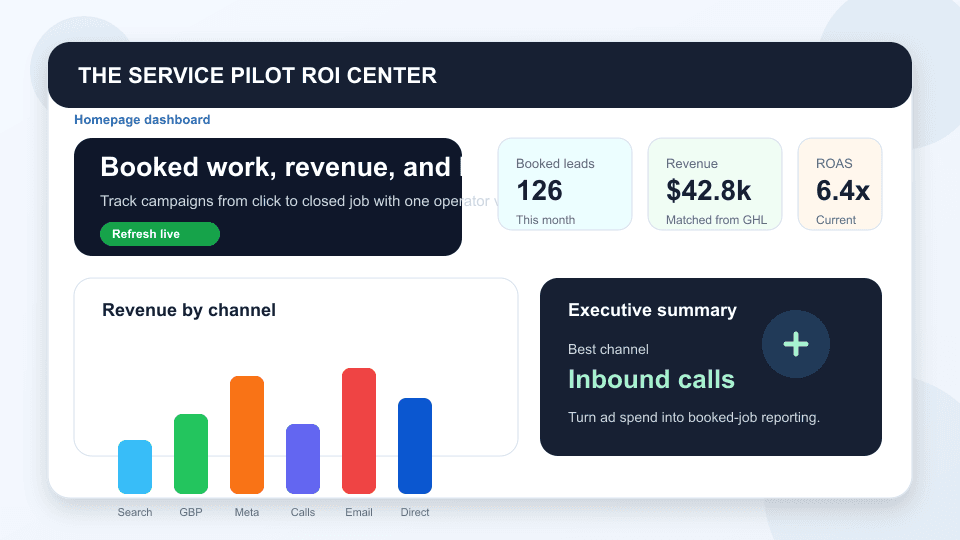
ROI Center dashboard with spend, leads, Google Ads, and GHL matchback cards.
210 minCustomer account owner

Start account connections

Authorize the customer's own Meta, Google Ads, and GHL sources without sharing passwords.

Step-by-step actions
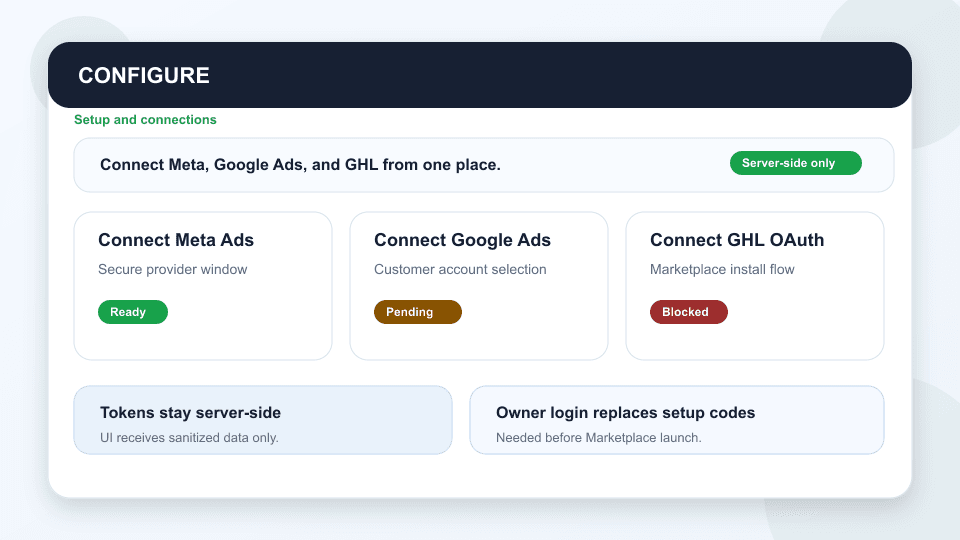
  • Click Configure in the left sidebar.
  • Under Meta Ads, click Connect and sign in with the customer's Facebook account that has business or ad account access.
  • Approve the requested Meta permissions, then return to ROI Center.
  • Under Google Ads, click Connect and sign in with the customer's Google account that can access the ad account.
  • Approve the requested Google permissions, then return to ROI Center.
  • Under GHL, click Connect if OAuth is available.
  • If OAuth is not available, paste the approved private integration token into the GHL token field and save it.
  • Do not use a personal account, wrong ad account, or another client's token.

Done when

Each provider shows connected, needs data, or a clear setup-needed state.

ROI Center configure page with connect buttons for Meta, Google, and GHL.
35 minAgency admin

Check provider status

Verify each data source is authorized and producing sanitized reporting rows.

Step-by-step actions
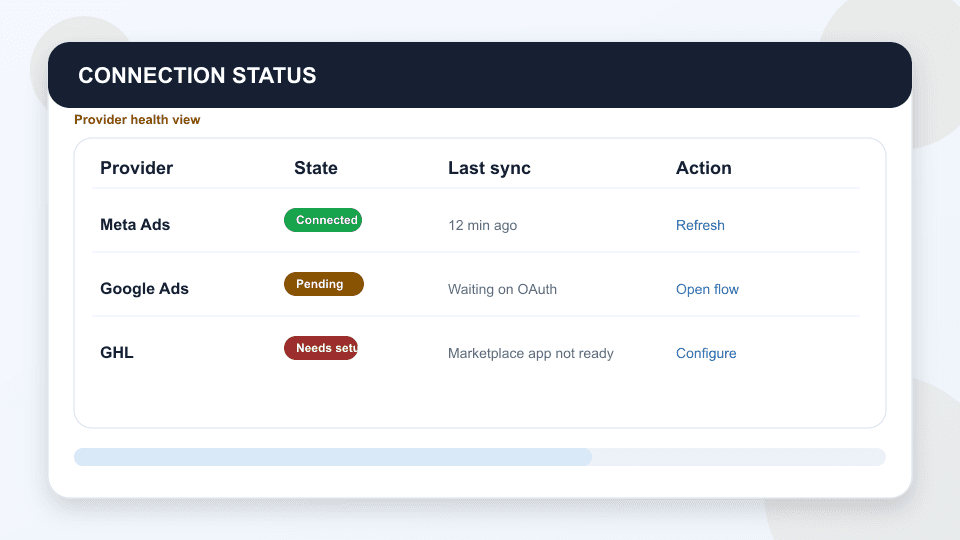
  • Click Connections in the left sidebar.
  • Review Meta Ads first and confirm it says connected, needs data, or setup needed.
  • Review Google Ads next and confirm it says connected, needs data, or setup needed.
  • Review GHL last and confirm it says connected, needs data, or setup needed.
  • Check the imported row count and last import time for each provider.
  • Click Refresh now after connecting a provider or updating an imported snapshot.
  • If a provider still shows setup needed, go back to Configure and reconnect only that provider.

Done when

Meta, Google Ads, and GHL show either imported data or a clear next action.

ROI Center connections page showing provider setup cards and imported row counts.
410 minCustomer or marketer

Review campaign performance

Use ad-level performance to spot winners, waste, and matchback gaps.

Step-by-step actions
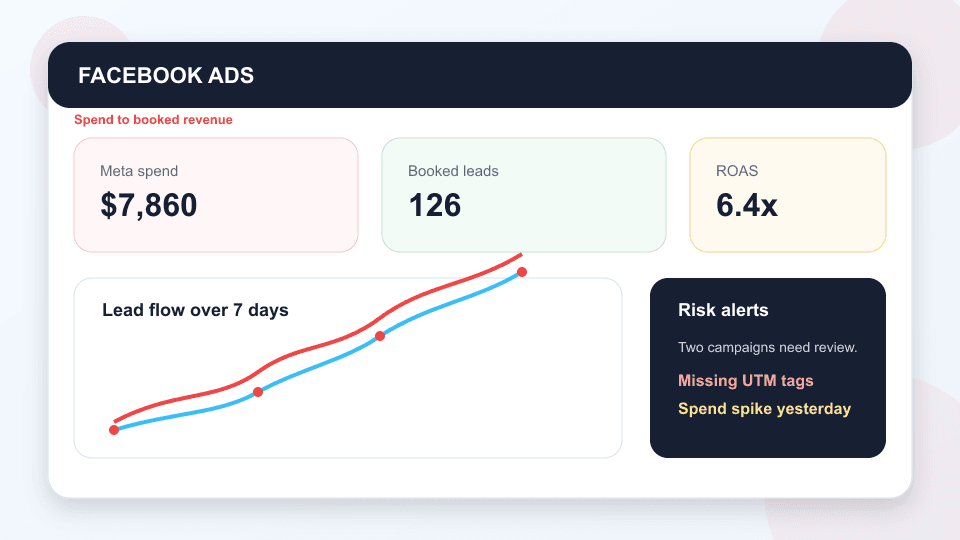
  • Click Facebook Ads or Google Ads in the left sidebar.
  • Start with spend and lead count so you know where money is going.
  • Compare cost per lead against booked jobs and revenue. Do not judge the campaign by lead cost only.
  • Look for campaigns with spend but no booked jobs. Mark those as review needed.
  • Look for campaigns with leads but missing revenue. Mark those as CRM mapping or attribution cleanup needed.
  • Look for campaigns with strong ROAS. Mark those as possible scale candidates.
  • Write down the next action before leaving the report, such as scale budget, fix tracking, refresh creative, or pause after approval.

Done when

The team knows which campaigns to scale, fix, or pause based on revenue quality, not only lead cost.

ROI Center Meta Ads report showing spend, leads, booked work, and recommendations.
510 minAgency admin

Use agency overview for recurring reporting

Review account health across customers and prepare a simple customer update.

Step-by-step actions
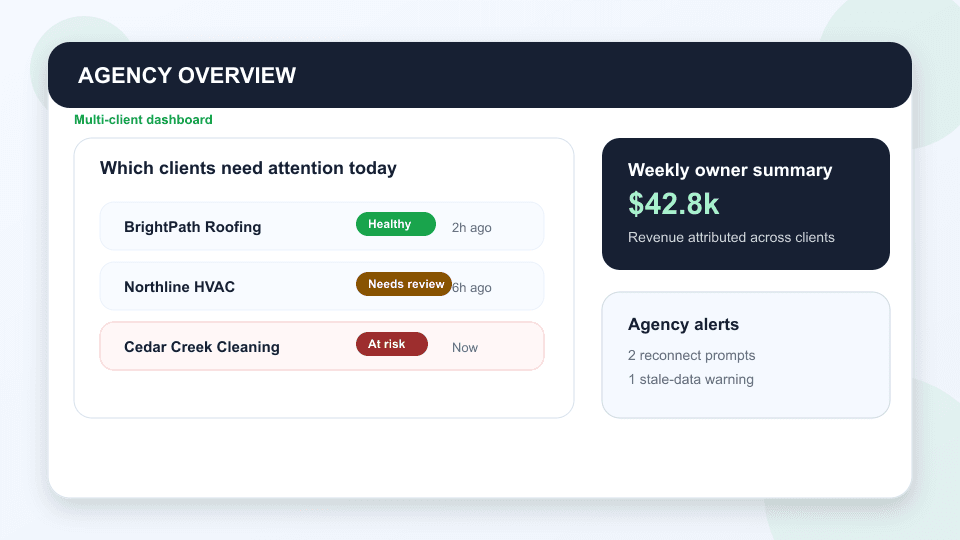
  • Open the agency overview or customer report workspace.
  • Start with disconnected sources. Reconnect or assign a setup task before reviewing performance.
  • Check stale imports next. Refresh the account or schedule a data update if the report is old.
  • Sort or scan for accounts with poor ROAS, high spend, or no booked jobs.
  • Open each problem account and confirm whether the issue is ads, CRM mapping, missing revenue, or disconnected data.
  • Prepare a short customer update with three parts: what changed, what is working, and what needs attention.
  • Send the update only after the dashboard data is current enough to trust.

Done when

The customer receives an ROI update and the agency has a next-action list for underperforming accounts.

ROI Center agency overview showing multiple client accounts and performance status.